EZPlayer
How to use EZPlayer with the PulseMesh v2 connector.
The PulseMesh v2 connector for EZPlayer is currently in beta testing.
This page describes how to connect EZPlayer to PulseMesh with the v2 connector, so visitors hear your show in sync on the PulseMesh mobile app or web player.
The connector is a separate program that runs on the same computer as EZPlayer, and it needs to be running whenever your show runs. It follows your show through EZPlayer's FPP MultiSync packets and its live status, so pausing, stopping and skipping reach phones in about a second, and it sets up EZPlayer's side by itself.
Setup
Update EZPlayer
Use EZPlayer 0.6.12 or later. It added what PulseMesh uses to follow your audio precisely, and the setting PulseMesh uses to turn on EZPlayer's sync for you. Make sure EZPlayer is running with your show folder open.
Download and start the PulseMesh connector
Download the connector, pulsemesh-connector-windows-x64.exe, from https://dl.pulsemesh.io/windows-connector/beta/pulsemesh-connector-windows-x64.exe. During the beta this is the latest release candidate, and each new one replaces it at the same address. It's a single program, not an installer. Move it to a folder where it can stay, such as a PulseMesh folder in your Documents, before you open it: Start with Windows (below) and the Windows Firewall remember where the file is. Then double-click it.
The connector isn't code-signed yet, so Windows SmartScreen may say it protected your PC. Click More info, then Run anyway.
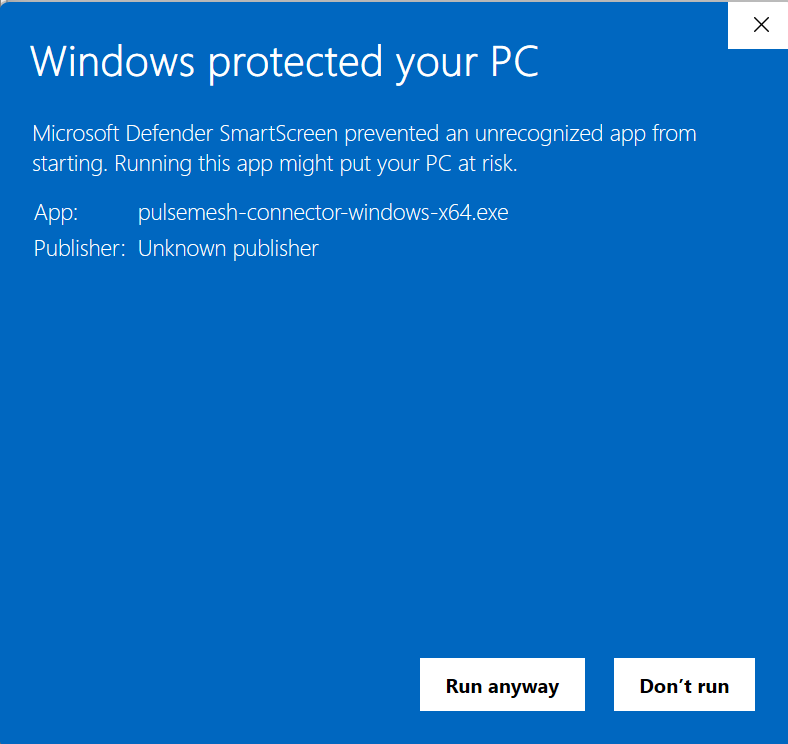
It has no window of its own: the connector runs in the system tray, by the clock. If you don't see its icon, click the Show hidden icons arrow next to the tray.
The first time the connector runs, Windows Firewall may ask whether to allow PulseMesh Connector. Your answer doesn't affect your show: EZPlayer and PulseMesh talk to each other on the same computer. It only decides whether you can open the connector's page from another computer.
Choose EZPlayer on the connector's page
The connector's page opens in your browser by itself, at http://localhost:8089. If another program on the computer already uses that address, such as the PulseMesh Light-O-Rama connector, the page is at http://localhost:8189 instead, and stays there. If the page doesn't open, right-click the connector's tray icon and choose Open PulseMesh Connector.
Under Step 1 — Your show player, choose EZPlayer and click Continue. Players the connector finds on this computer are marked Found on this computer. Light-O-Rama is listed too, as LOR, marked Not supported yet.
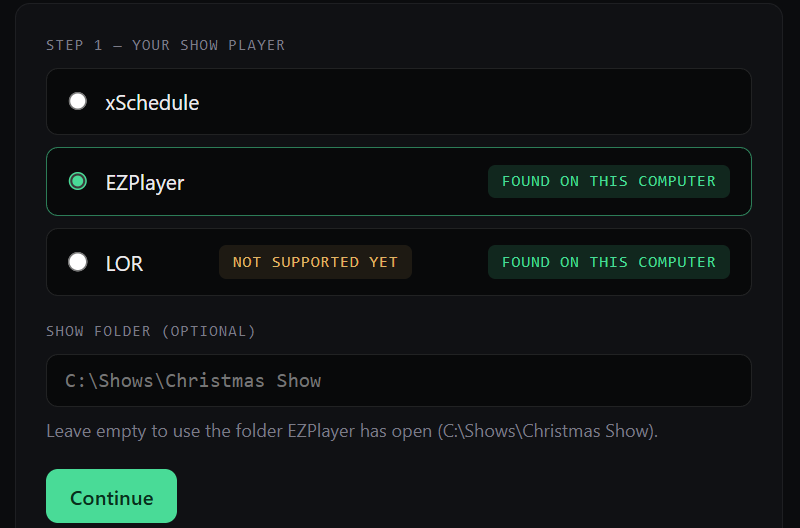
There's no folder to enter: the connector follows whichever show folder EZPlayer has open, and the page shows which one that is. It uploads the audio named by the sequences (.fseq files) in that folder. Leave Show folder (optional) empty unless the connector should read a different folder; if what you enter differs from the folder EZPlayer has open, the page warns you.
If EZPlayer is the only supported show player on this computer, the connector chooses it by itself. The page then shows Show player: EZPlayer — EZPlayer has open: …, followed by your show folder and Change, instead, and you can go straight on.
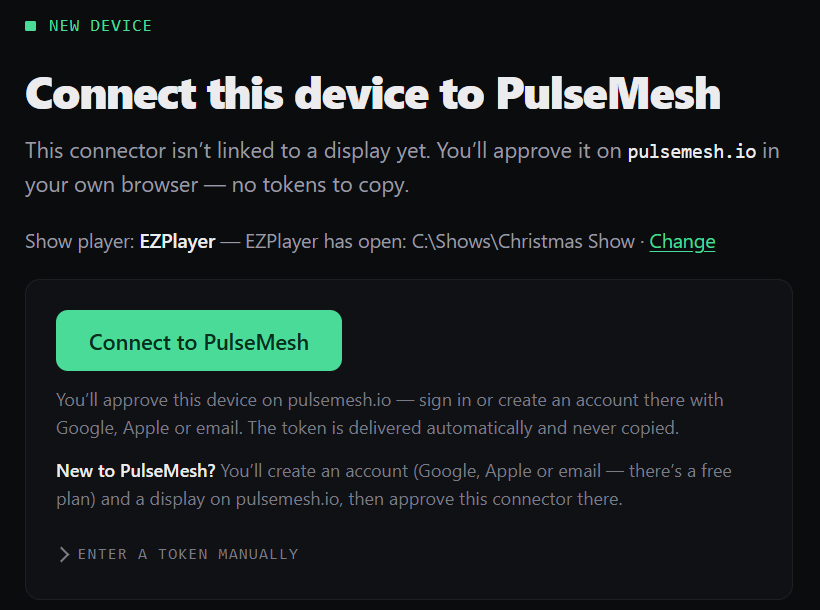
You can change the player and its folders later under Show player, in the page's Device configuration section.
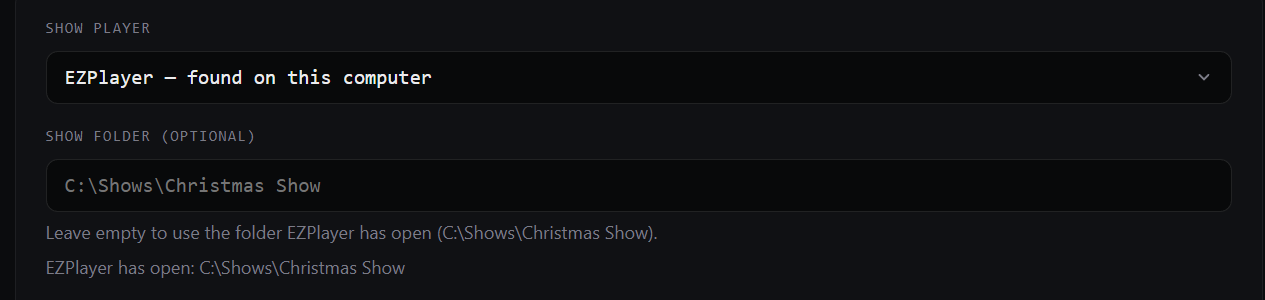
If some of your sequences' audio lives outside the show folder, add that folder there as Audio folder (optional).
Let the connector set up EZPlayer's sync
You don't need to change any EZPlayer settings. When the connector reaches EZPlayer, it turns on EZPlayer's MultiSync and sends it to itself. EZPlayer saves that setting, so it stays on even if you later stop using PulseMesh.
- If MultiSync already sends to other devices, such as FPP remotes, the connector adds itself to the list and leaves the rest as it was.
- If MultiSync was off but still has a list of remotes saved, turning it on starts sending to those remotes too. If that list holds devices that shouldn't follow this show, clear it in EZPlayer first.
- If MultiSync already sends multicast on the standard address, it already reaches the connector and is left alone.
- If you turn MultiSync off while the connector runs, it notes it in its log and doesn't undo it. It turns MultiSync back on the next time it connects to EZPlayer, for example after either one restarts.
Connect it to PulseMesh
On the connector's page, click Connect to PulseMesh. The page shows Your code and an Open pulsemesh.io ↗ button, and a countdown: codes expire after 10 minutes. To approve on your phone instead, scan the QR code next to it. Either way, pulsemesh.io shows the same code: approve only if it matches.
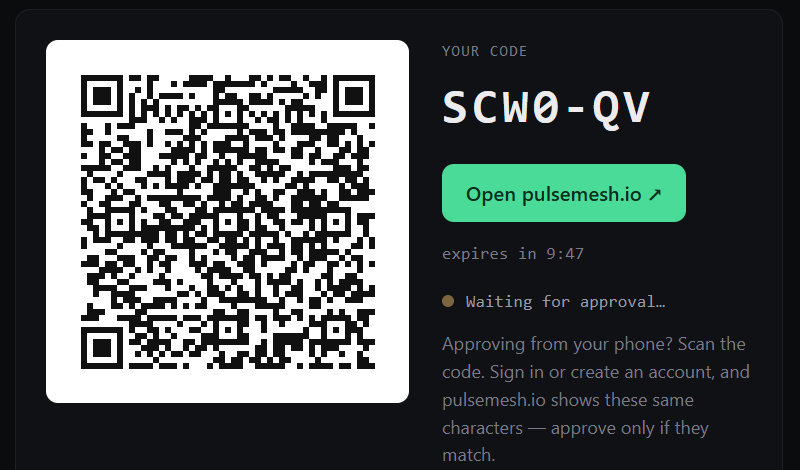
Click Open pulsemesh.io and sign in, or create an account if you don't have one yet (Google, Apple or email; there's a free plan). If you don't have a display yet, you're asked to name one first. Check that Pair to display names the right display. Then, under Credential for, choose which player this connector is for, and click Pair local player:
- New to PulseMesh? Choose New local player and give it a name.
- Moving this show from another player, such as FPP? Choose your existing player. On the free plan, which allows one player, this is the only option that works.
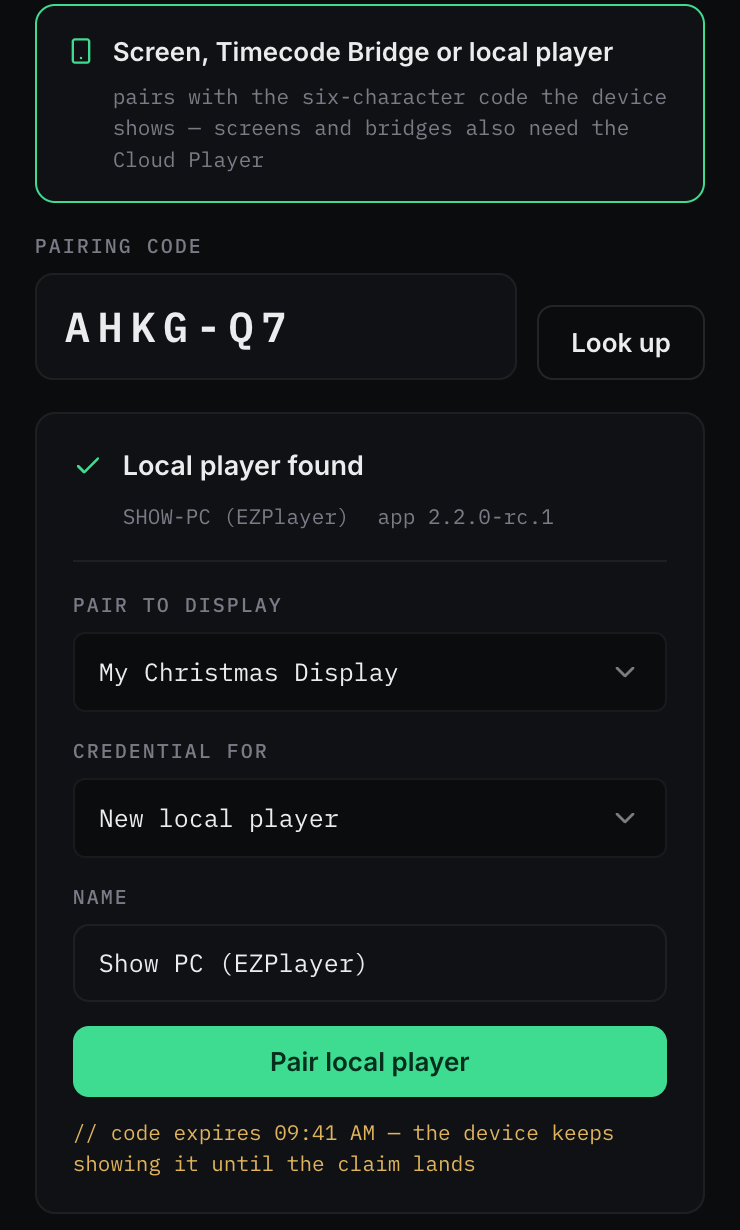
Pairing from another device? Open the Devices page there, click Add device, choose Screen, Timecode Bridge or local player, and enter the code.
The connector's page then shows Approved. There's no token to copy.
Start it with Windows
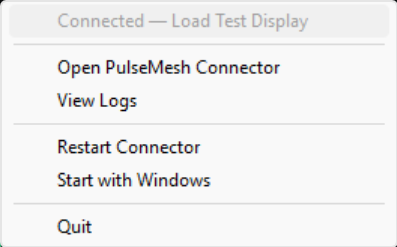
The connector needs to be running whenever your show runs. Right-click its tray icon and click Start with Windows, which is off until you turn it on, so the connector starts whenever the show computer does.
The same menu has everything else you need:
- The first line says how the connector is doing: Connected, followed by your display's name, once it's paired.
- Open PulseMesh Connector opens its page. So does double-clicking the icon, or opening the program again.
- View Logs opens the folder with its log files.
- Restart Connector restarts it.
- Quit stops it until you open it again.
Finish your display details
Go to the Display section and fill in the rest of your display's details, such as its location. This is your display's public entry in the PulseMesh app.
Test it out
Play a song in EZPlayer, then open the PulseMesh app or the web player to hear it. Pause, resume and skip: phones should follow in about a second.
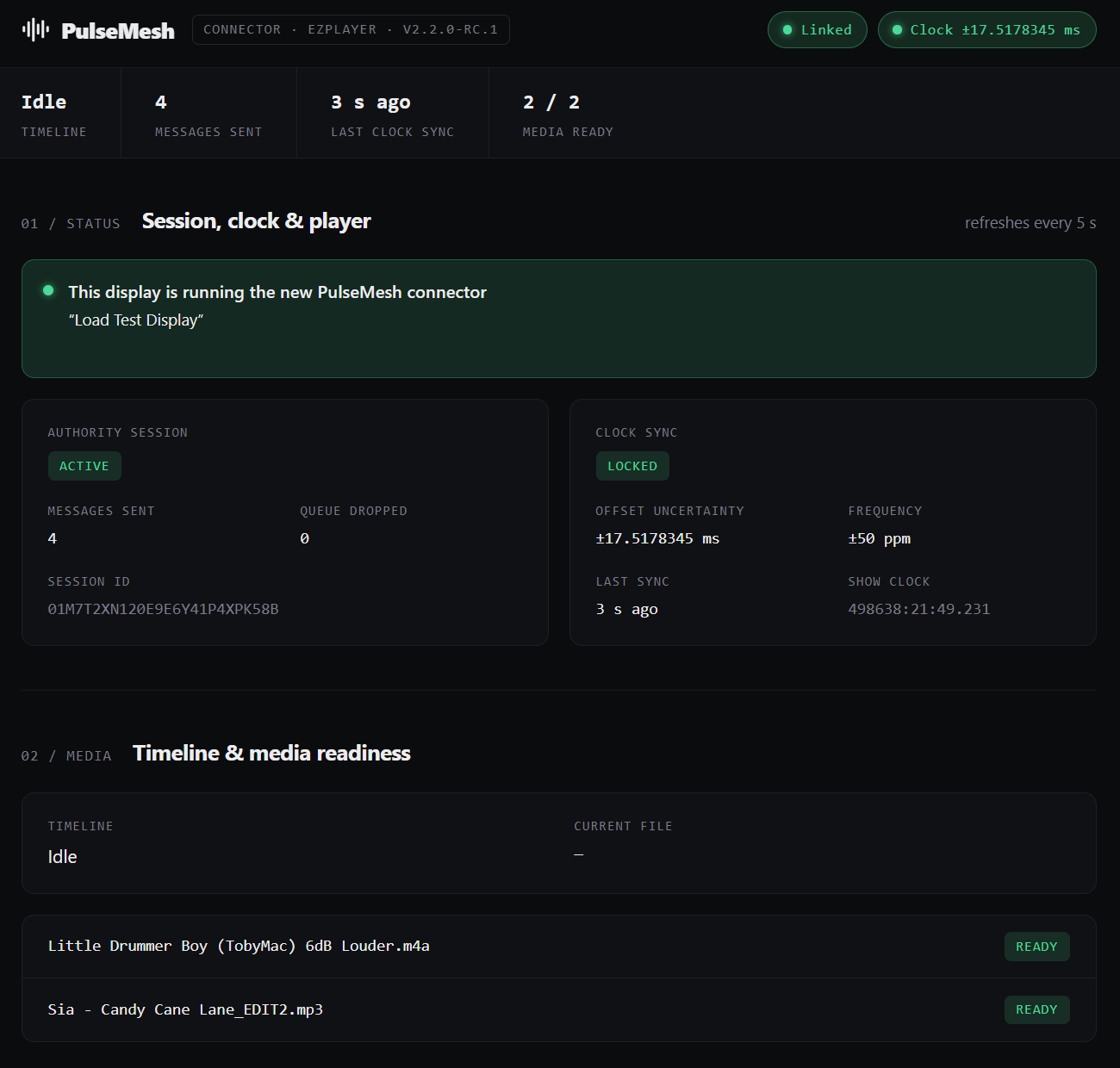
The first time, your audio files are uploaded and processed before they can play. The connector's page shows how many are ready under Media ready. If you don't hear anything yet, wait until it's done, which can take 20 minutes or more for a big show.
Consider Joining the Facebook Group
There's an active Facebook community dedicated to discussing PulseMesh.
Updating the connector
The connector doesn't update itself yet. To update it:
- Right-click the tray icon and choose Quit.
- Delete the old file.
- Download the new release candidate from the beta link and save it in the same folder.
- Double-click it. SmartScreen may ask again: More info, then Run anyway.
- If you saved it in a different folder or under a different name, turn Start with Windows off and back on in the tray menu, so it starts the new file.
Your settings and pairing are kept: they're saved separately from the program.
Troubleshooting
If things aren't working after following the steps above, please review the solutions below. If you continue to run into issues, reach out to us at [email protected]. Once the connector is paired, Upload to support… in the Diagnostics section of its page sends us its recent logs. Before that, choose View Logs in the tray menu and email us the newest log file.
Phones don't follow the show
- Check the connector is running: its icon should be in the system tray, perhaps under Show hidden icons, and the first line of its menu should say Connected. If it isn't there, double-click the connector's file to start it.
- Check EZPlayer is version 0.6.12 or later and is running with your show folder open, on the same computer as the connector.
- Open your show in EZPlayer: the connector follows the show folder EZPlayer has open. If the connector's page says "the show folder set here isn't the one EZPlayer has open", clear Show folder (optional) under Show player, in the page's Device configuration section.
- Open the Diagnostics section on the connector's page. Its log says whether it reached EZPlayer ("following EZPlayer's status") and whether it turned on MultiSync ("turned on EZPlayer's MultiSync to PulseMesh").
- With an EZPlayer older than 0.6.12, turn on FPP MultiSync master yourself in the Sync Output part of EZPlayer's player settings, and add
127.0.0.1under Remotes. An older EZPlayer can't tell the connector which show it has open either, so enter your show folder in Show folder (optional) on the connector's page: in Step 1, or later under Show player in Device configuration.
MultiSync uses a custom address or port
If you set EZPlayer's MultiSync multicast address to something other than the standard 239.70.80.80, or its MultiSync port to something other than the standard 32320, PulseMesh can't hear it. The connector leaves these settings alone, so that it doesn't cut off your other devices. Set them back to the standard ones.
One or more songs don't play through the app, or show "Loading"
- On the connector's page, check Media ready shows every file ready and none failed.
- A song uploads only if its sequence is in the show folder EZPlayer has open (or the connector's Audio folder (optional)) and names its audio file. Move or add the folder, or re-save the sequence in xLights with its audio set.
The connector doesn't connect
If it hasn't paired yet, or pairing doesn't finish, choose View Logs in the tray menu and open the newest log file: it says whether the connector reached PulseMesh, and why not if it didn't. If that doesn't tell you what's wrong, email that file to [email protected].
Once it's paired, the session status on the connector's page reads Active while it's connected to PulseMesh. If it doesn't, the log in the page's Diagnostics section shows why.
Where the connector's log is
Once the connector is paired, the Diagnostics section on its page shows its recent log lines. The full log is in %LOCALAPPDATA%\pulsemesh\logs, which View Logs in the tray menu opens: one file a day, kept for two weeks.