Timecode Bridge
Set up the PulseMesh Timecode Bridge and wire MTC or LTC into your console.
The bridge ships for Windows (x64) and macOS (Apple silicon). A Linux build is in development.
The Timecode Bridge is a small companion app for the Cloud Player: it runs on a computer at the show site and emits MTC (over a virtual or physical MIDI port) and LTC (over an audio output) in lockstep with your show — so lighting consoles and drone show software chase the same clock your audience hears. It can also run the other way and chase house LTC or MTC instead of generating its own.
It is a single executable: no installer, no admin account — it runs from wherever you unzip it.
Setup
Download the bridge
Download the latest build for your machine from the downloads page and unzip it anywhere. The folder is the whole install — there is no setup program.
The downloads page also shows the SHA-256 hash of each zip and the command to check it, if you want to verify the download before running anything.
Install the MIDI runtime (Windows 11 only)
On macOS there is nothing to install — skip to the next step. The bridge creates its own PulseMesh TC MIDI port every time it starts.
On Windows 11, run the bundled Microsoft installer once — the file whose name starts with Windows.MIDI.Services. It adds Microsoft's MIDI runtime; with it, the bridge creates its own PulseMesh TC MIDI port every time it starts — nothing to name, nothing to keep running.
The installer is Microsoft's, unmodified (we bundle it so you don't have to find it). It is a release candidate and not yet signed by Microsoft, so SmartScreen may ask the same "More info → Run anyway" as for the bridge itself.
Windows 10, or a Windows 11 that can't take updates
Older Windows cannot create MIDI ports on its own, and the Microsoft installer above won't help. Use loopMIDI (free) instead: install it, create a port named exactly PulseMesh TC, and leave loopMIDI running (it starts with Windows by default). The bridge finds the port by its name, and the bridge page will tell you if it can't.
Run the bridge
Windows: double-click pm_gateway.exe. If Windows shows a blue "Windows protected your PC" screen, click "More info", then "Run anyway" — the Windows download is unsigned, and the published hash above lets you verify it first.
macOS: double-click pm_gateway. The macOS download is signed and notarized with Apple, so it opens without a warning; the first launch of a new version checks that notarization with Apple, so be online the first time.
A console window opens and stays open — that window is the bridge. Minimize it, don't close it.
Open the bridge page
On the same computer, open http://127.0.0.1:9130. The page shows a six-character claim code.
Claim the bridge
Claim the code on your Devices page — from any browser, phones included. The lookup shows the bridge's hardware facts before you bind it to a display. The bridge finishes pairing by itself.
Confirm it's ready
Once paired, the bridge appears under Timecode Bridge on the Devices page with its own status. If it goes offline later — closed window, sleeping computer — Show Control's preflight will say so: the lights can't chase a stopped clock.
Wiring
How the bridge's clock reaches your gear.
Skybrush
Two settings: Skybrush Server listens to the bridge's MTC, and Skybrush Live starts the show when that timecode reaches the show's start time. Nothing needs picking on the bridge page — its PulseMesh TC port is already there.
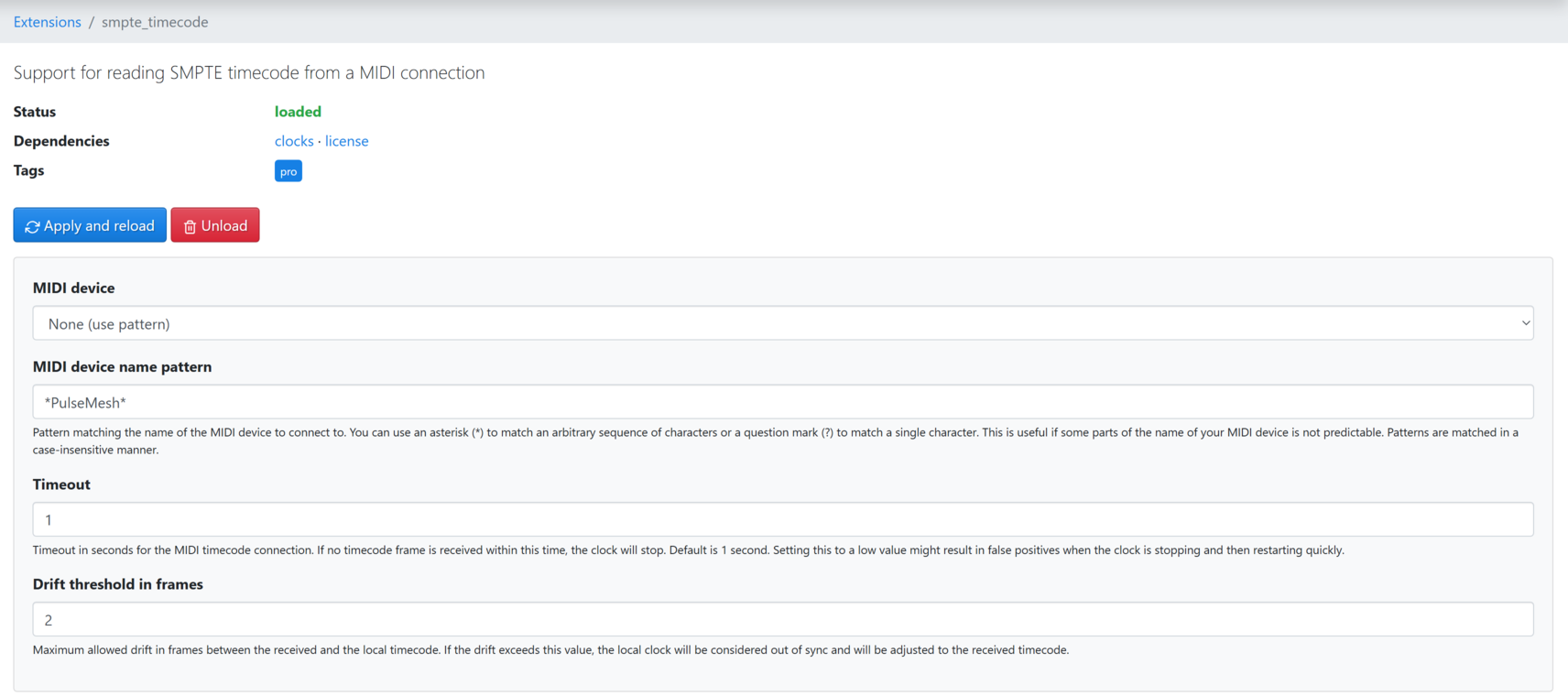
1. Point Skybrush Server at the bridge's port. In the Skybrush Server web UI (http://localhost:5000/webui on the server computer), open Extensions → smpte_timecode. Set MIDI device to None (use pattern) and MIDI device name pattern to *PulseMesh*, click Apply and reload, then click Save at the bottom of the sidebar so the setting survives a restart. Leave Timeout at its default of 1 second.
Use the pattern rather than picking the port from the list: Windows adds a number to the port's name (PulseMesh TC 1), and that number can change from one machine or restart to the next. The pattern matches the port whatever the number is.
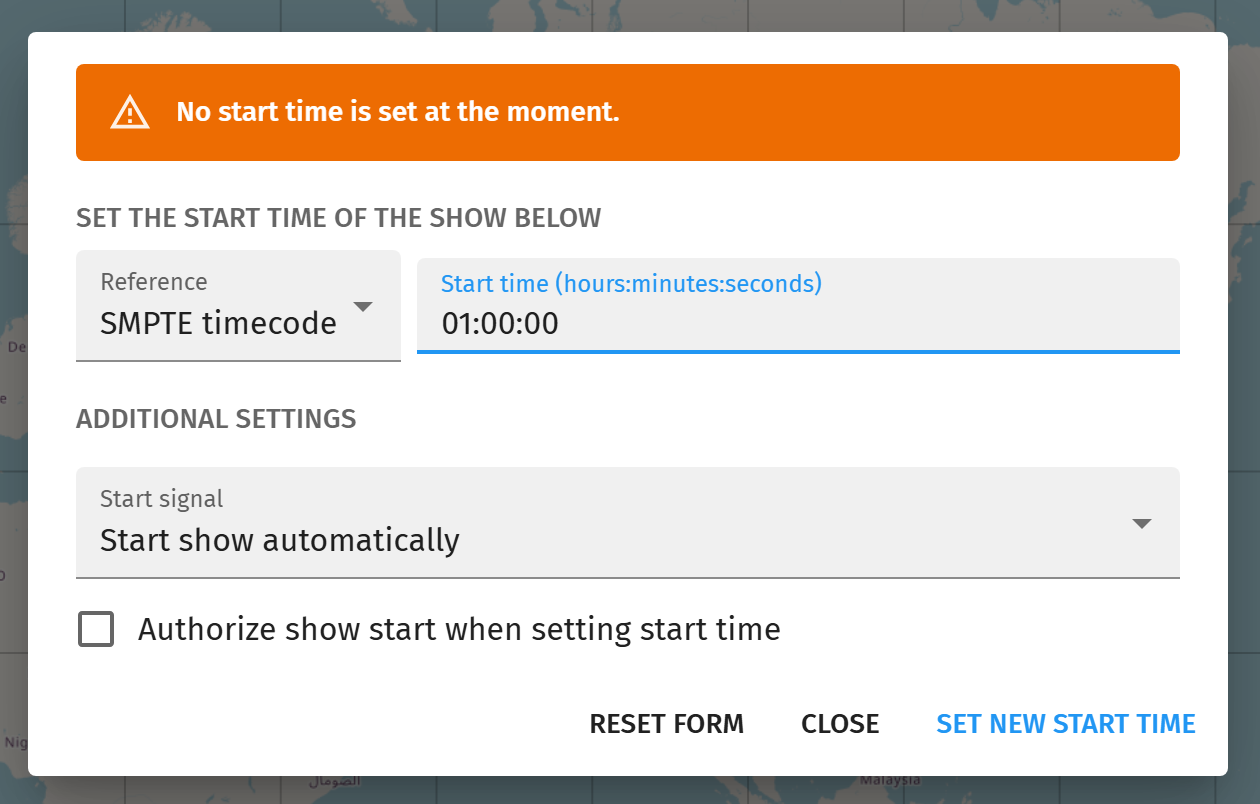
2. Set the start time in Skybrush Live. In the Show control panel, click Choose start time. Set Reference to SMPTE timecode and Start time to the bridge's timecode offset — 01:00:00 unless you changed it. Then click Set new start time.
The bridge emits the first frame of your show as 01:00:00:00, so a start time of 01:00:00 launches the drones on the show's first frame. The offset lives on Show Control's Timecode output card under Advanced → Offset; it defaults to 01:00:00 in Locked chase mode. If you change it there, change the start time here to match.
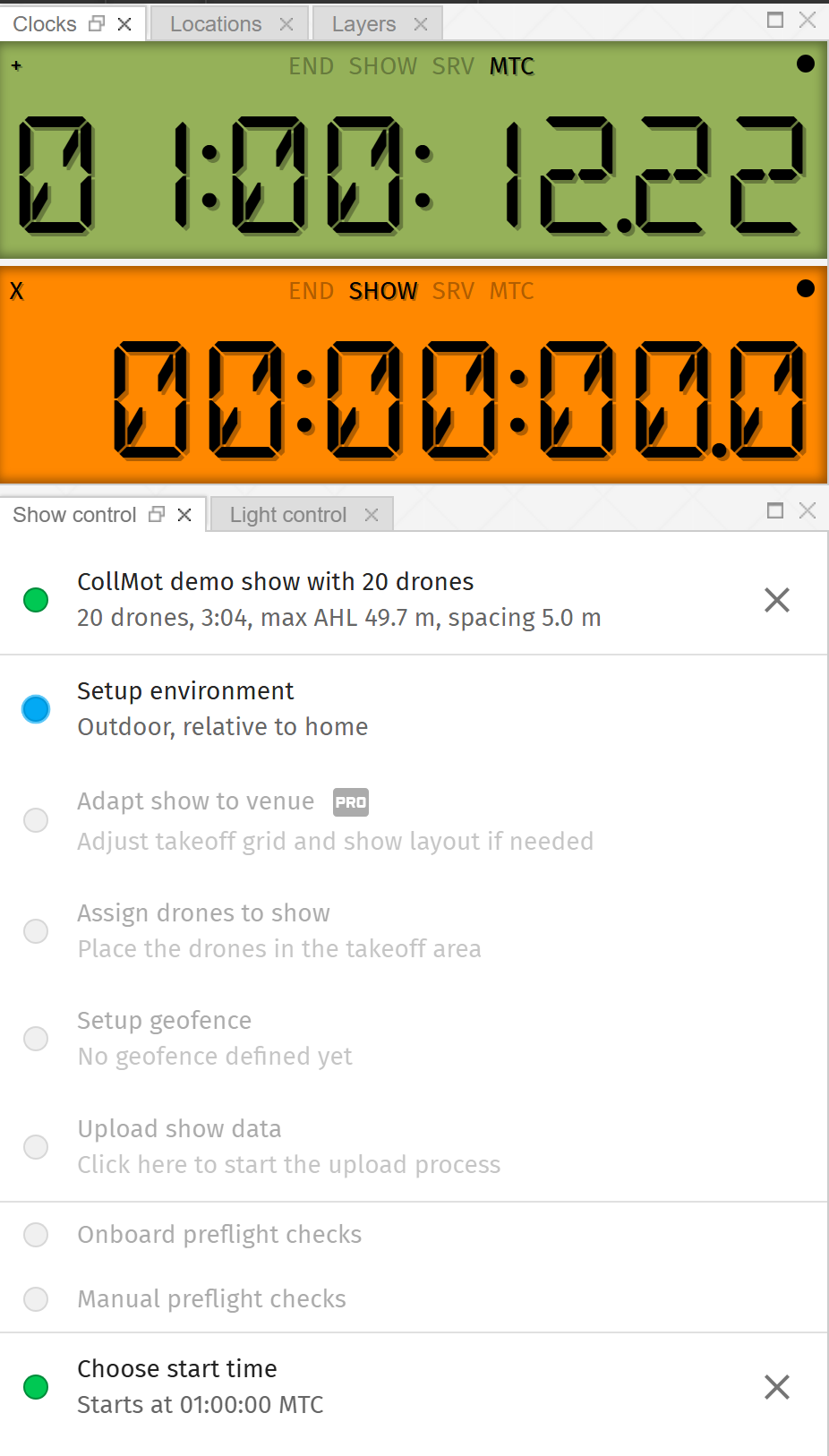
Once it's set, the step turns green and reads Starts at 01:00:00 MTC. The MTC clock at the top of the Clocks panel shows the timecode Skybrush Server is receiving from the bridge. If it doesn't move while the show is rolling, Skybrush Server isn't receiving the bridge's port — check the pattern in step 1.
grandMA and other MTC consoles
Select the PulseMesh TC MIDI port as the console's timecode input and set the console to chase incoming MTC. On macOS and Windows 11 the bridge creates that port itself; on Windows 10 it's loopMIDI's port, so leave loopMIDI running.
LTC
Connect an audio output of the bridge computer to your console's or recorder's LTC input.
Chasing a house clock
The bridge can consume house LTC or MTC instead of generating its own, so the show follows your existing clock rather than the other way around. You set this up from Show Control's Timecode panel, not on the bridge page. On macOS, chasing LTC through an audio input makes macOS ask once whether Terminal may use the microphone — allow it; that is the audio input.
Show day
- Set the computer to never sleep — Windows power settings, or on a Mac, System Settings → Energy (Battery on a laptop) with the Mac plugged in. A sleeping computer is a stopped bridge, and Skybrush Server stops its show clock after 1 second of timecode silence.
- Keep the console window running for the whole show — minimized is fine.
Updating
Stop the bridge (close the console window), replace pm_gateway.exe (or pm_gateway on macOS) with the new one, and start it again. Your configuration and pairing survive — they live outside the unzipped folder, and the bridge page's footer shows the exact path and the running version. The Microsoft MIDI installer does not need to be run again.
Troubleshooting
If things aren't working after following the steps above, please review the solutions below. If you continue to run into issues, feel free to reach out to us at [email protected].
Windows won't run the exe or the MIDI installer
Both are unsigned, so SmartScreen shows "Windows protected your PC". Click "More info", then "Run anyway". If you want assurance first, verify the zip's SHA-256 hash against the one published beside the download.
macOS says it can't verify the app
The macOS build is notarized, so this normally means the Mac was offline the first time it ran a new version. Connect it to the internet and open pm_gateway again. If you want assurance first, verify the zip's SHA-256 hash against the one published beside the download.
No MIDI port shows up
On Windows 11, make sure the bundled Windows MIDI Services installer has been run once. On Windows 10, the loopMIDI port name must match PulseMesh TC exactly — the bridge finds it by name. On macOS the bridge creates the port itself — restart it if the port is missing. In every case, the bridge page at http://127.0.0.1:9130 will tell you when it can't find a port.
Show Control reports the bridge offline
The console window was closed, or the computer went to sleep. Start the bridge again — pairing survives restarts — and set the power settings so it can't happen mid-show.